
Organize by catalog
Group images by product line or campaign so editors can find the right variant without relying on upload dates.
Guides
Organize product photos, replace a file carefully, and keep image dimensions, formats, and ALT text consistent across a catalog.
Who this is for: WooCommerce store editors and agencies maintaining product photos across a growing catalog.
What you will solve: Find the right product image, check its other uses, and review a replacement without overlooking shared references.
Product images appear in listings, galleries, search, and shared templates. Before replacing or deleting one, check every product that references it. Keep crops consistent within a category and serve images at sizes the theme actually uses.
Group images by product line or campaign so editors can find the right variant without relying on upload dates.
Check usage, dimensions, and the attachment ID before replacing a live product image. Review the storefront afterward.
Audit duplicate exports and oversized photos. Use descriptive ALT text for informative product views, then test the rendered pages.
For a new version of a product photo, open the existing attachment and check Usage before opening Inspector → Tools → Replace. Review the replacement dimensions and keep a backup. After the change, check the product gallery and category listing, including mobile crops.
Review the documented image tools and replacement workflow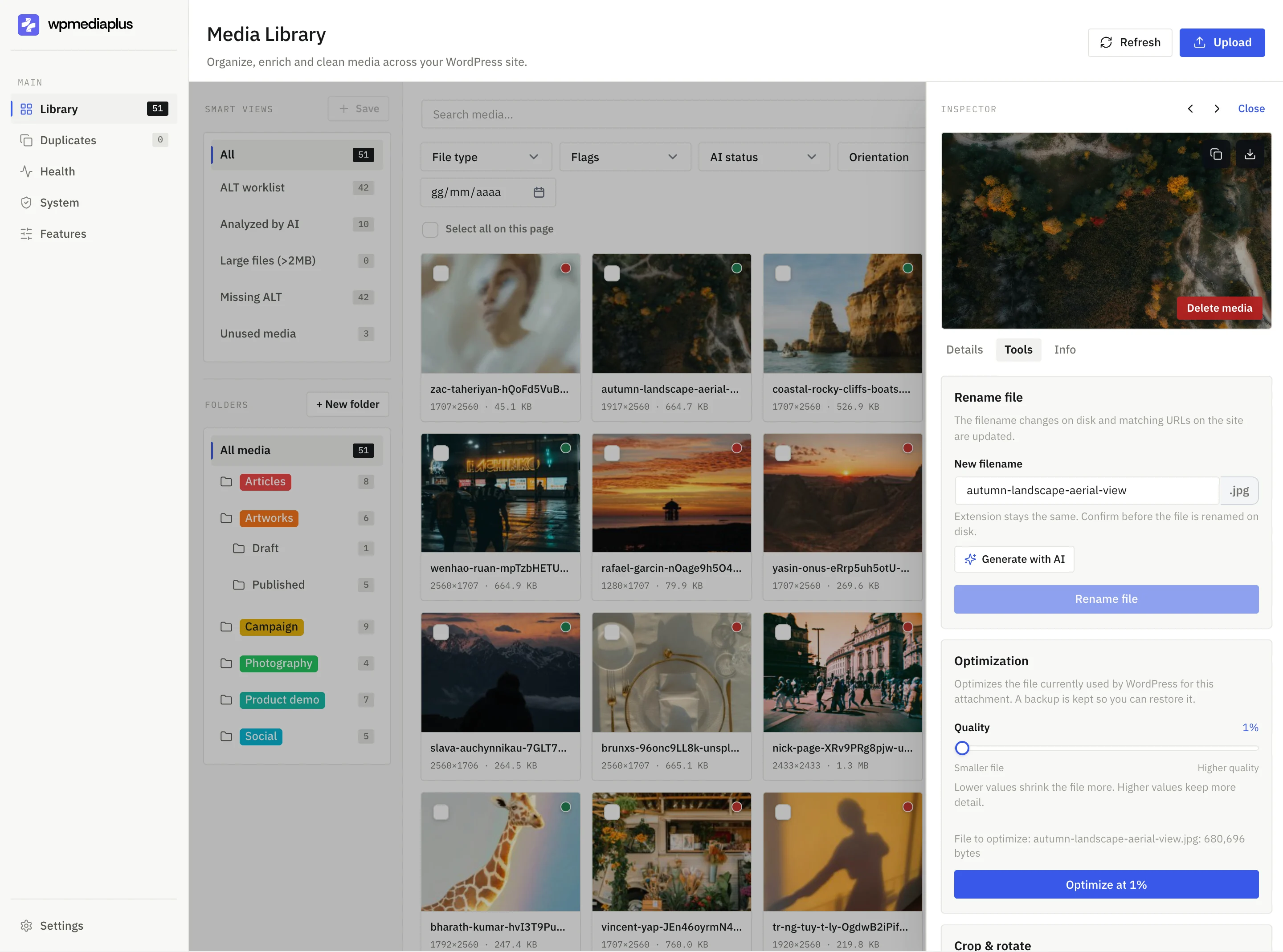
Compare what the tools actually do, then try the workflow on a real library before deciding what fits your site.