
Choose a structure
Keep folders shallow and name them for work people actually do. Virtual folders leave attachment URLs and paths unchanged.
Guides
Plan virtual folders for WordPress media, compare FileBird and HappyFiles, and migrate assignments without moving uploads. Check the media picker after import.
Who this is for: Freelancers and agencies organizing a client library or switching from FileBird, HappyFiles, Real Media Library, or WP Media Folder.
What you will solve: Keep a predictable folder structure in the library and media picker while preserving existing upload URLs.
A folder is useful when editors can predict where a file belongs. Start with a shallow structure by client, campaign, or product line. Check how the folder plugin stores assignments before importing years of uploads.
Keep folders shallow and name them for work people actually do. Virtual folders leave attachment URLs and paths unchanged.
Check the native media picker, bulk assignment, and whether a plugin copies or moves files. Compare the tools your team already uses.
FoldRocket can copy folders and assignments from FileBird, HappyFiles, Real Media Library, and WP Media Folder. Check a few folders and attachments after import.
When switching a client site, open Settings → Import and copy the existing folder assignments. Check one populated folder, then open the media picker in a post and find the same files. Compare their attachment URLs before retiring the previous folder plugin.
Follow the documented folder import steps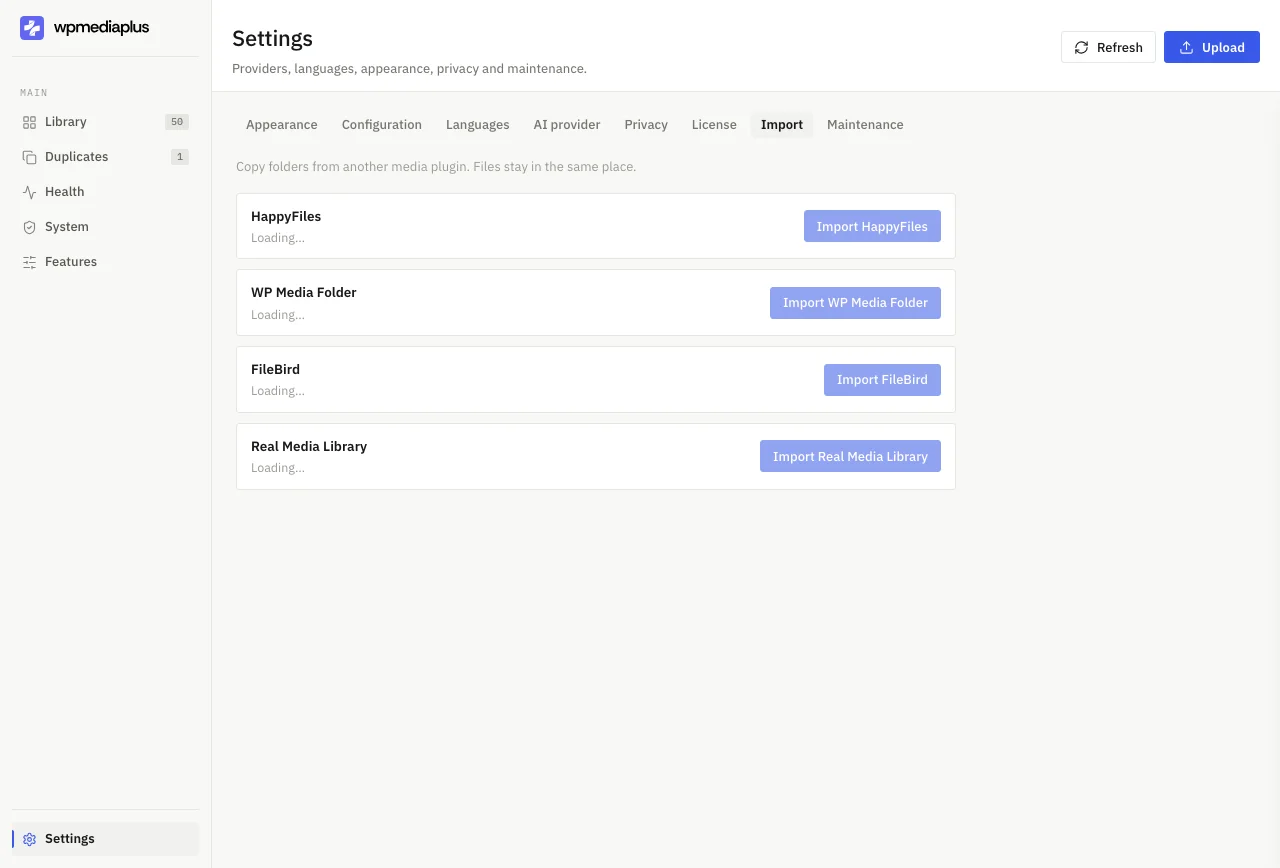
Compare what the tools actually do, then try the workflow on a real library before deciding what fits your site.