Key takeaways
- Folder plugins attach a taxonomy to attachment posts, so files never move on the server and image URLs stay stable.
- Native WordPress only offers date filters, search, and attachment filtering, so named folders always require a plugin or strict naming conventions.
- Folder structures should mirror how you work: by client for agencies, by product line and campaign for WooCommerce, by content type and year for publishers.
- Before buying, check a plugin's changelog, tested-up-to version, and support threads, plus whether staging sites consume license seats.
- Folders work best paired with cleanup habits like renaming files, finding unused media, and filling missing ALT text.
WordPress ships with a flat media library: no folders, just an endless grid and a search box, which turns any site with a few thousand images into a junk drawer. A WordPress media library folders plugin fixes that by layering virtual folders over the existing files, so nothing moves on the server and nothing breaks. This guide walks through what native WordPress can and cannot do, how those plugins attach files, and which folder structure fits your site type.
Why doesn't WordPress have folders in the media library by default?
WordPress stores media as attachments: every upload is a post in the wp_posts table with attachment metadata, and the library is really just a filtered post list. Folders imply a filesystem hierarchy, but WordPress deliberately decouples uploads from content relationships. Files live in date-based directories (/wp-content/uploads/2025/01/), and their association with posts is handled through IDs, not paths. Core has never shipped a folder UI for that reason, and the media library documentation describes only list and grid views with filtering, not organization.
The result: every folder plugin you can install, including FoldRocket, layers a taxonomy on top of attachments rather than moving files. That's a design constraint, not a missing feature.
How do you create folders in the WordPress media library without a plugin?
What native WordPress actually gives you (month/year folders, filtering, search)
WordPress gives you date-based grouping out of the box. In the media library, you can filter by month uploaded, switch between list and grid view, and search by title or filename. That is the entire native toolkit: no folders you name, no drag-and-drop organization, no way to group by client or project. If your uploads happen in bursts tied to real work, date filters can be enough. If you upload assets across months for the same client, they are not.
Workarounds and where each one breaks down
Developers lean on naming conventions, and that is the most defensible no-plugin approach. Prefix every file with the client or project slug, keep ALT text disciplined, and search becomes your folder system. It breaks down the moment a client uploads files themselves, or when you inherit a site where the previous person named things IMG_4021.jpg. Renaming existing files is painful because WordPress stores the filename in the database and in post content; changing it after the fact breaks embedded images unless you also update every reference.
The second workaround is attaching media to a parent page or post. In list view, you can filter by "Unattached" and reattach files to the right parent, which acts like a weak folder. It breaks down for anything used in multiple places: a logo attached to one page is invisible from the others, and WooCommerce product images, logos, and reusable blocks all live in several contexts at once. The third is separate multisite subsites per client, which works until one client needs shared assets across subsites and you are copying the same image five times. If you have already tried these and hit the ceiling, a folders plugin is the honest next step. We compared the native Media Library Organizer approach against plugin-based folders over at Media Library Organizer, including what changes in the database and what does not.
How do media library folders plugins attach files without moving them on the server?
Virtual folders vs physical directory moves, and why it matters for URLs
WordPress stores every upload as an attachment post in the database, with its file path fixed at upload time. Folder plugins exploit this: they create a taxonomy (usually a custom one) and assign terms to attachment posts. The folder is metadata, not a directory, so /wp-content/uploads/2024/03/ never changes.
That design has real consequences. URLs stay stable, so nothing breaks in search results, embedded posts, or hardcoded image links. Renaming a folder is instant because no files move. Moving files physically would require rewriting the guid, all _wp_attachment_metadata references, and every <img src> across your content.
The tradeoff: folders exist only while the plugin is active. Deactivate it and attachments remain, but the folder view disappears. That is also why checking maintenance matters before you depend on one; look at the last-updated and tested-up-to lines on the FileBird listing in the plugin repository to see what "supported" means in practice (FileBird plugin page). We break down one popular option in more detail in our WP Media Folder comparison.
What folder structure works best for a WooCommerce or agency site?
The structure that survives is the one that mirrors how you work: by client and site for agencies, by product and campaign for WooCommerce, by content type for publishers. Three patterns cover most cases.
Agency and multi-site structure
Keep it shallow. Top level per client, second level per site or project, third level only for assets you reuse, like logos and brand files. Anything deeper and developers stop filing things correctly. If you hand over cleaner sites to clients, a structure they can read beats one that is clever. Staging copies should not cost you extra seats, so check how a plugin counts installs before you standardize across a portfolio (FAQs).
WooCommerce store structure
Organize by product line first, then by campaign or season. A store with 5,000 product images needs folders like /apparel/summer-2025/ more than it needs per-product folders, which explode fast. Pair folders with a rename habit so IMG_4821.jpg becomes alpine-jacket-front.jpg before upload; Media File Renamer (Meow Apps) automates this if you would rather not rename by hand.
Publisher and blog structure
Sort by content type and year: featured images, inline graphics, downloads, then the year. Editors find yesterday's hero image faster that way than by date alone.
| Site type | Top level | Second level | Watch out for |
|---|---|---|---|
| Agency | Client | Site / project | Depth beyond three levels |
| WooCommerce | Product line | Campaign / season | Per-product folder sprawl |
| Publisher | Content type | Year | Duplicates from repeated exports |
One honest caveat: folders only help if files land in the right place at upload. FoldRocket covers folders and cleanup, but if your team uploads straight to the server via FTP, no folder plugin will sort that backlog for you.
What should you check before choosing a media library folders plugin?
Maintenance signals: changelogs, support threads, tested-up-to version
Folders plugins touch attachments, so an abandoned one is a real risk. Before buying, open the plugin's changelog and check the tested-up-to WordPress version, then scan recent support threads. When WP Media Folder's future looked uncertain, users asked directly on WordPress.org whether it was still supported or abandoned, and some removed it from live sites as a precaution. A quiet repo plus unanswered threads is your answer.
Licensing: seats, staging sites, and multi-site counts
Read the license terms before checkout, not after. Some tools meter per seat or per site, which stings when you run staging copies or a multi-site network. FoldRocket counts staging installs separately and hands over cleaner sites without consuming a seat; the Freelancer tier is €79 (details). If you are comparing folder-only tools like FileBird, our breakdown covers where the license models diverge.
Cleanup, rename, and ALT text features beyond folders
Folders alone leave the junk drawer intact. Check whether the plugin also finds unused media and duplicates, renames files safely, and fills missing ALT text. Rename tools like Media File Renamer (Meow Apps) handle that one job; a plugin that bundles cleanup with folders saves you stacking three tools on every client build.
How do folders interact with categories, tags, and search in the media library?
Folders are taxonomy, not replacement. A file can live in one folder and still carry tags, ALT text, and attachment metadata, so a WooCommerce product image can sit in /products/hoodies and be found by searching "hoodie red" without touching the folder tree. Most folder plugins filter the library list view rather than query attachments directly, which is why search results sometimes ignore folder context: you get every match, not matches inside the folder you're viewing.
Two practical habits follow from that. Use folders for ownership (which site, which client, which page) and tags or filenames for attributes (colour, size, version). And before handing a site over, run a search for unused media inside each folder, because a clean folder tree still hides duplicates and orphaned screenshots. FoldRocket covers the cleanup pass alongside folders, though its tag handling is standard WordPress, nothing fancier.
When is a flat media library with search better than folders?
Skip folders when one person maintains the site and filename discipline already exists. WordPress search matches titles and filenames, so a library of renamed, descriptive files ("client-hero-2025.jpg", not "IMG_4021.jpg") is findable without any organizational layer. Folders add value when multiple people guess where things live or when cleanup needs a visual pass over unused media and duplicates.
Folders also cost you something: a plugin dependency you must keep updated. If you manage client sites, check the abandonment risk before adding one. Seat-based licensing matters too; FoldRocket charges €79 for a freelancer license and staging sites do not consume a seat, so a flat-plus-search policy avoids that whole class of decision (foldrocket.com).
Which media library folders plugins are worth a look in 2025?
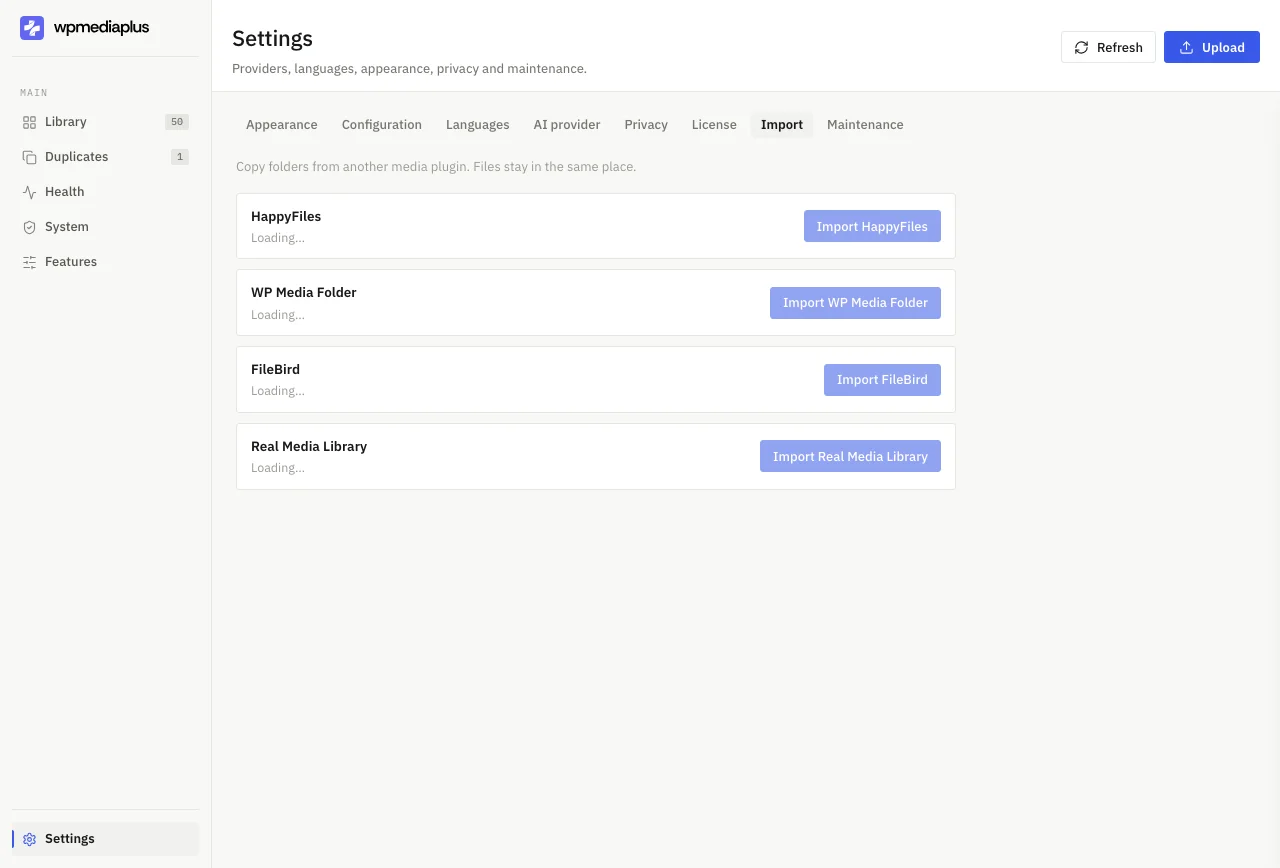
Four folder plugins cover most needs: HappyFiles, WP Media Folder, FileBird, and Real Media Library. All four handle virtual folders without moving files on the server, so switching between them is mostly a matter of interface taste and price.
If you also want cleanup, FoldRocket adds duplicate and unused media removal, ALT text checks, and bulk rename on top of folders, with AI optional via your own API key. Pricing starts at €79 for freelancers, and staging sites don't consume a seat, which matters if you manage client multisites and want to hand over cleaner sites.
The honest gap: FoldRocket is newer and has a smaller user base than the four established folder plugins, so its long-term track record is thinner. If folders alone are the job, any of the four is a safe pick; if the junk drawer is the job, that's where the difference shows.
FAQ
Is the WP Media Folder plugin still supported and updated?
Its status has been uncertain. Users asked directly on WordPress.org whether it was still supported or abandoned, and some removed it from live sites as a precaution. Check the changelog, the tested-up-to WordPress version, and recent support threads before depending on it; a quiet repo with unanswered threads tells you what you need to know.
Do media library folders change image URLs or break existing links?
No. Folder plugins layer a taxonomy over attachment posts, so files stay in their original date-based upload directories and URLs never change. Search results, embedded posts, and hardcoded image links keep working. Renaming a folder is instant because nothing moves on the server. The tradeoff is that folder views disappear if you deactivate the plugin.
Can I use one folder plugin license on staging sites and client installs?
It depends on the license model, and some tools meter per seat or per site, which stings when you run staging copies or a multisite network. FoldRocket counts staging installs separately and they don't consume a seat, which matters when you standardize across a portfolio. Read the licensing terms before checkout, not after.
How do I clean up unused media and duplicates before organizing into folders?
Run a search for unused media and duplicates first, because a clean folder tree still hides orphaned screenshots and repeated exports. Then rename files with descriptive slugs so search works alongside folders. FoldRocket bundles duplicate and unused media removal, ALT text checks, and bulk rename with folders; Media File Renamer handles the rename job on its own.
Do folders in the media library slow down WordPress on large libraries?
Folders are taxonomy terms assigned to attachment posts, not directory scans, so the overhead is comparable to tags or categories. Most plugins filter the library list view rather than querying attachments directly. On libraries with thousands of images, the bigger performance factor is the library grid itself, not the folder layer sitting on top of it.